Profile sections management
From Opera Wiki
Monica.Sanna (Talk | contribs) (→Bottom buttons) |
Monica.Sanna (Talk | contribs) (→Pixel Art - explanation and detail) |
||
| (3 intermediate revisions not shown) | |||
| Line 64: | Line 64: | ||
* [[File:tastodimensione.png]]: allows you to modify the image or drawing dimensions by opening the [[Subject Information]] window. | * [[File:tastodimensione.png]]: allows you to modify the image or drawing dimensions by opening the [[Subject Information]] window. | ||
* [[File:tastofiltro2.png]]: this button, active on WMF or DXF images, is used to optimize the image quality. | * [[File:tastofiltro2.png]]: this button, active on WMF or DXF images, is used to optimize the image quality. | ||
| - | * [[File:tastocomponi.png]]: allows you to compose the profile cross-section and opens the [[Node definition|node definition window]] of the [[Nodes | + | * [[File:tastocomponi.png]]: allows you to compose the profile cross-section and opens the [[Node definition|node definition window]] of the [[Nodes]] archive]. |
| - | * [[File:tastoentitiesdxf.png]]: opens the [[DXF entities | + | * [[File:tastoentitiesdxf.png]]: opens the [[DXF entities|DXF entities management]] window. |
{{BR}} | {{BR}} | ||
| Line 116: | Line 116: | ||
* [[File:tastocls.png]]: deletes the drawing. | * [[File:tastocls.png]]: deletes the drawing. | ||
* [[File:tastostampa3.png]]: allows the drawing to be printed. | * [[File:tastostampa3.png]]: allows the drawing to be printed. | ||
| - | * [[File: | + | * [[File:tastox2.png]]: closes the window. |
* [[File:tastomirx.png]]: divides the grid area horizontally into two mirrored parts; what is drawn in one of the two parts is automatically copied to the other part. | * [[File:tastomirx.png]]: divides the grid area horizontally into two mirrored parts; what is drawn in one of the two parts is automatically copied to the other part. | ||
* [[File:tastomiry.png]]: divides the grid area vertically into two mirrored parts; what is drawn in one of the two parts is automatically copied to the other part. | * [[File:tastomiry.png]]: divides the grid area vertically into two mirrored parts; what is drawn in one of the two parts is automatically copied to the other part. | ||
| - | * [[File:tastoruota.png]]: rotates the drawing by 90° each time it is pressed. | + | * [[File:tastoruota.png|43px]]: rotates the drawing by 90° each time it is pressed. |
| - | * [[File:tastorifletti.png]]: flips the drawing according to the MirX and MirY buttons, if one or both are active. | + | * [[File:tastorifletti.png|43px]]: flips the drawing according to the MirX and MirY buttons, if one or both are active. |
* [[File:tasto4frecce.png]]: allows the drawing to be moved in all directions. | * [[File:tasto4frecce.png]]: allows the drawing to be moved in all directions. | ||
* [[File:tasto3frecce.png]]: expands or compresses the drawing horizontally. | * [[File:tasto3frecce.png]]: expands or compresses the drawing horizontally. | ||
Latest revision as of 12:36, 26 June 2026

 N.B: To access this window in Opera Job Management: from the Archives menu, select the Profiles button and, in the following window, press the
  button.
Contents |
The Edit Profile Cross-sections window allows you to create, import, modify, and manage the profile cross-section drawing.
Opera allows one or more graphic cross-sections to be associated with each profile, retrieved from an external file, acquired from a scanner or webcam, imported from the clipboard, or drawn directly by the operator. The cross-section can be used in printouts, diagrams, cutting lists, node composition, and functions linked to profile machining.
Side function buttons
The buttons in the central part of the window allow you to manage the cross-sections associated with the profile.
-
 : allows you to insert a new profile cross-section.
-
 : allows you to delete the selected cross-section.
-
 : allows you to modify the data of the selected cross-section.
-
 : allows you to copy the selected cross-section.
-
 : opens the profile selection window and allows you to import an icon from another profile in the archive.
-
 : by pressing this button, the program connects directly to the clipboard, detecting and loading the last saved image.
-
 : activates the Default checkbox, so that the selected cross-section is used as the main image of the profile.
-
 : opens the catalog selection window, which allows you to choose the document to associate with the cross-section.
-
 : allows you to display or manage the data in table form.


Main cross-section data
The right side of the window contains the main data of the selected cross-section.
- Type
 : indicates the cross-section format. In the example, the DXF (Drawing Exchange File) format is selected.
- Default: if enabled, indicates that the selected cross-section is the main one to be used in the profile archive.
- Size: value filled in by the program, referring to the size of the imported image file or drawing.
- Name: allows you to indicate the name of the cross-section or linked file.
- Icon format : active with Bitmap, TIFF, or WMF images; indicates the icon color format.
- Transparency : active with bitmap image files; allows you to manage the background of the loaded image. The function allows the background detected from the file or clipboard to be totally or partially removed.
- Content only: allows you to manage the display of only the useful part of the imported content, when supported by the format used.
- Structure shapes: considers a single piece as the structure shape.
- Display Symbol : allows you to determine how the cross-section is displayed in printouts and linked windows. In the example, the Standard item is selected.

Geometric cross-section data
This section shows the geometric data calculated by the program on the selected cross-section.
- Surface: indicates the cross-section area, expressed in mm².
- Weight: indicates the profile linear weight, expressed in kg/m.
- Perimeter: indicates the cross-section perimeter, expressed in mm.
- Ext. perimeter: indicates the external perimeter of the cross-section, expressed in mm.
These data are filled in or calculated by the program according to the loaded drawing and the available information.
Bottom buttons
The lower part of the window contains the buttons for graphic and technical management of the cross-section.
-
 : allows you to save the cross-section in an external folder.
-
 : allows you to manage or import the cross-section in SVG format, when supported.
-
 : allows you to edit the image by connecting to the graphics program or to the tile matrix, if it is a drawing.
-
 : allows you to modify the image or drawing dimensions by opening the Subject Information window.
-
 : this button, active on WMF or DXF images, is used to optimize the image quality.
-
 : allows you to compose the profile cross-section and opens the node definition window of the Nodes archive].
-
 : opens the DXF entities management window.


Inserting a new cross-section

Pressing the  button opens the cross-section format selection window.
The available items are:
- Image
- CAD Drawing mm / inch
- SVG
- WMF
- Pixel Art
- Scanner
- Webcam
- Link
- Exit
With Image, DXF mm / inch, PDF, SVG, and WMF, the program connects to the operating system and opens a window from which it is possible to select the directory containing the file to import. The selected image or drawing is saved directly inside the program.
With Pixel Art, an image creation window opens.
With Scanner or Webcam, it is possible to acquire an image in real time from the hardware device connected to the computer.
N.B: Compatibility with all devices on the market is not guaranteed.With Link, the program connects to the operating system and opens the image path previously set in the Directories. In this way, the file is not loaded inside the program, making the archive lighter, but is recalled from the set path.
N.B: This system is recommended for inserting PDFs relating to certificates. The files will still be included in the backup copies.With Exit, it is possible to exit without inserting any icon.
Pixel Art - explanation and detail


By selecting Pixel Art, the program opens the Profile cross-section drawing window.
In this window it is possible to draw the profile as represented in the catalog. There is a grid area, equipped with a group of buttons and other elements. The operator must choose the tile shape, move the mouse pointer into the drawing area, and click until the drawing is formed.
The main commands of the window are listed below:
-
 : deletes the drawing.
-
 : allows the drawing to be printed.
-
 : closes the window.
-
 : divides the grid area horizontally into two mirrored parts; what is drawn in one of the two parts is automatically copied to the other part.
-
 : divides the grid area vertically into two mirrored parts; what is drawn in one of the two parts is automatically copied to the other part.
-
 : rotates the drawing by 90° each time it is pressed.
-
 : flips the drawing according to the MirX and MirY buttons, if one or both are active.
-
 : allows the drawing to be moved in all directions.
-
 : expands or compresses the drawing horizontally.
-
 : expands or compresses the drawing vertically.
-
 : shows the current tile.
-
 : allows parts of the profile to be erased or drawn.
-
 : allows you to select the tile shape.
-
 : allows you to copy parts of the drawing.
-
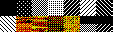 : allows you to select the tile pattern. It is useful for drawing parts of the profile with different materials, such as wood, PVC, or thermal-break parts.


Drawing aid keys
During drawing processing, two keyboard keys are active and allow some steps to be simplified.
-
 : cancels the last operation performed. It is useful if a mistake has been made or if you want to go back one step.
-
 : by holding this key down while drawing a line, it is possible to obtain a straight line.


